

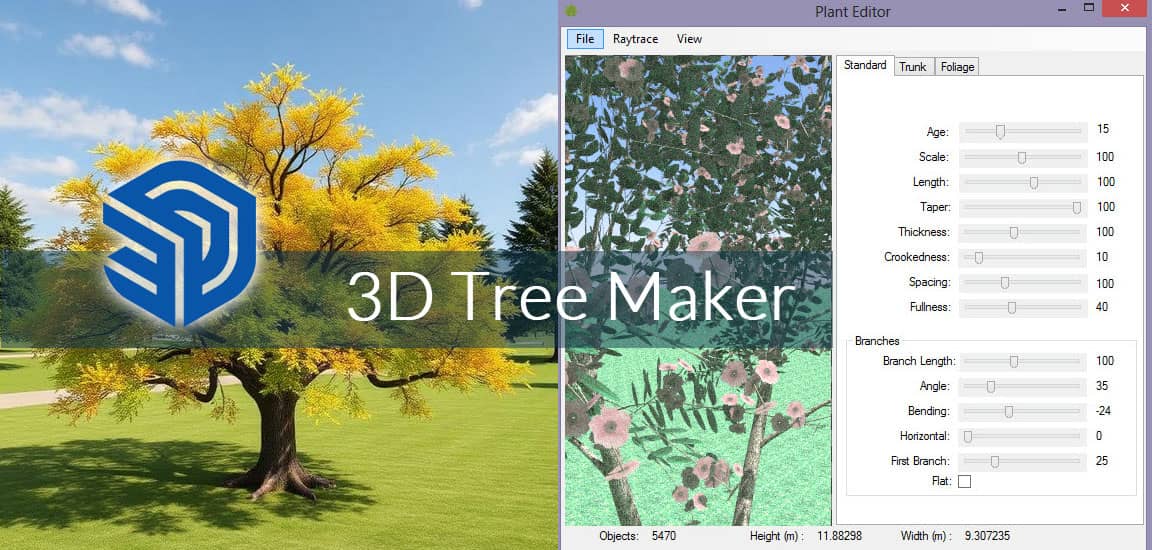
Introduction to SketchUp 3D Tree Maker Plugin
In modern architectural visualization and landscape design, realistic vegetation modeling plays a critical role in enhancing visual appeal and presentation quality. The SketchUp 3D Tree Maker Plugin is a powerful extension that enables designers, architects, and 3D artists to create highly detailed and customizable trees directly within SketchUp.
We explore every aspect of this plugin, including features, installation, usage, benefits, and advanced techniques to maximize productivity and realism.
What is the SketchUp 3D Tree Maker Plugin?
The SketchUp 3D Tree Maker Plugin is an advanced extension designed to generate procedural 3D trees and vegetation models. Instead of importing static tree models, users can dynamically create trees with adjustable parameters such as:
- Height and trunk thickness
- Branch density and spread
- Leaf type and distribution
- Seasonal variations
This plugin eliminates the need for external modeling software, allowing users to design natural-looking landscapes efficiently within SketchUp.
Key Features of the 3D Tree Maker Plugin
1. Parametric Tree Generation
The plugin allows users to create trees using parametric controls, enabling quick adjustments without rebuilding models. This ensures flexibility in design iterations.
2. Realistic Geometry and Textures
With advanced algorithms, the plugin produces highly detailed branches, trunks, and foliage, delivering near-photorealistic results.
3. Customizable Tree Types
Users can generate various species such as:
- Deciduous trees
- Coniferous trees
- Tropical plants
- Shrubs and bushes
Each type comes with unique growth patterns and structures.
4. Lightweight Models for Performance
Despite detailed geometry, the plugin optimizes models to maintain smooth SketchUp performance, even in large scenes.
5. Seasonal Variations
Create trees for:
- Summer (dense green foliage)
- Autumn (colored leaves)
- Winter (bare branches)
This feature is essential for realistic environmental storytelling.
How to Install the SketchUp 3D Tree Maker Plugin
Step-by-Step Installation Guide
- Download the plugin file (usually .rbz format).
- Open SketchUp.
- Navigate to Window → Extension Manager.
- Click on Install Extension.
- Select the downloaded .rbz file.
- Restart SketchUp.
After installation, the plugin will appear in the toolbar or extensions menu.
How to Use the 3D Tree Maker Plugin Effectively
1. Launching the Plugin
Once installed, activate the plugin from the toolbar. A control panel will open with adjustable parameters.
2. Configuring Tree Parameters
Adjust settings such as:
- Tree height
- Branch segmentation
- Leaf density
- Randomization factor
Fine-tuning these parameters ensures natural and non-repetitive results.
3. Generating Trees
Click the generate button to create a tree model. The plugin will instantly produce a fully modeled 3D tree.
4. Editing and Refinement
After generation:
- Scale the tree
- Adjust positioning
- Apply custom materials
This ensures seamless integration into your project.
Best Practices for Realistic Tree Modeling
Use Variation for Natural Appearance
Avoid duplicating identical trees. Instead:
- Modify parameters slightly
- Change rotation and scale
- Adjust leaf density
This creates organic diversity in landscapes.
Optimize for Performance
For large projects:
- Use low-poly trees in the background
- Apply high-detail trees in foreground areas
This balances visual quality and system performance.
Combine with Rendering Engines
Pair the plugin with rendering tools to achieve:
- Realistic lighting
- Shadows and reflections
- High-quality textures
This significantly enhances presentation output.

Advantages of Using the 3D Tree Maker Plugin
1. Time Efficiency
Creating trees manually is time-consuming. This plugin generates models within seconds, saving valuable time.
2. Cost-Effective Solution
Instead of purchasing expensive tree libraries, users can create unlimited variations at no additional cost.
3. Improved Visualization Quality
High-quality vegetation improves:
- Client presentations
- Architectural renders
- Landscape designs
4. Seamless Workflow Integration
The plugin works directly within SketchUp, eliminating the need for:
- External modeling tools
- Complex imports
Advanced Techniques for Professionals
1. Layer-Based Tree Management
Organize trees using layers or tags:
- Separate foreground and background vegetation
- Control visibility for faster editing
2. Proxy Workflow for Large Projects
Use low-detail proxies during modeling and replace them with high-resolution trees during rendering.
3. Custom Material Application
Apply custom textures for:
- Bark realism
- Leaf variation
- Seasonal effects
4. Combining with Terrain Modeling
Integrate trees with terrain tools to create:
- Forest landscapes
- Urban parks
- Garden designs

Common Issues and Troubleshooting
Plugin Not Appearing
- Ensure installation was successful
- Restart SketchUp
- Check extension settings
Slow Performance
- Reduce polygon count
- Limit tree density
- Use component instances
Unrealistic Results
- Adjust randomness settings
- Avoid uniform scaling
- Modify branch distribution
Tips for SEO-Optimized Landscape Design Projects
To maximize the value of your projects:
- Use high-resolution renders
- Add diverse vegetation types
- Maintain realistic spacing and proportions
These elements significantly improve visual storytelling and client engagement.
Conclusion: Elevate Your SketchUp Projects with 3D Tree Maker
The SketchUp 3D Tree Maker Plugin is an essential tool for professionals aiming to create high-quality, realistic vegetation without complex workflows. Its parametric design, customization capabilities, and performance optimization make it a superior choice for architects, designers, and 3D artists.
By mastering this plugin, we can transform simple models into immersive, lifelike environments that stand out in competitive presentations and deliver exceptional results.
