

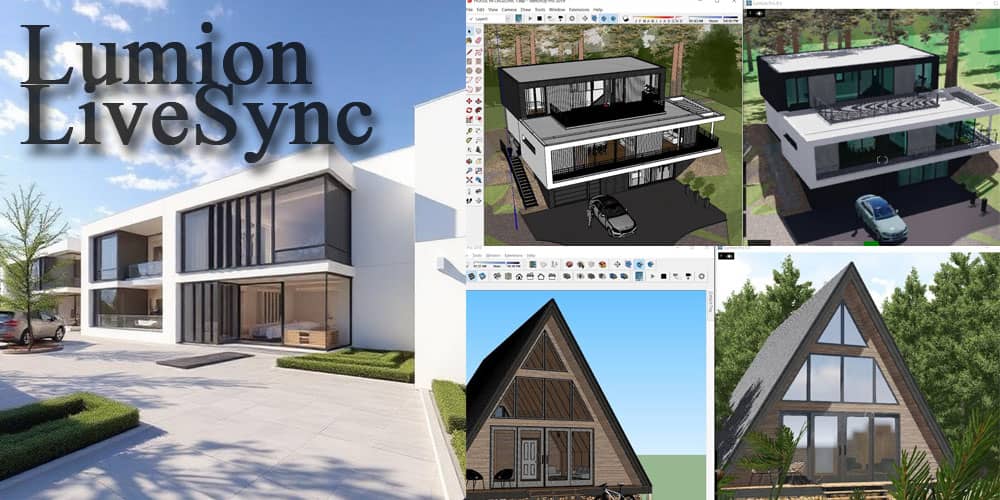
What Is Lumion LiveSync for SketchUp?
Lumion LiveSync for SketchUp is a powerful real-time rendering plugin that creates a seamless connection between SketchUp and Lumion. It allows architects, interior designers, engineers, and 3D visualization professionals to instantly synchronize their SketchUp models with Lumion’s rendering environment without exporting files repeatedly.
With LiveSync, every modification made inside SketchUp appears immediately in Lumion. This real-time workflow dramatically improves productivity, visualization quality, and project presentation speed.
Professionals across architecture and construction industries prefer Lumion LiveSync because it simplifies the rendering process while delivering highly realistic visual outputs.

Key Features of Lumion LiveSync for SketchUp
Real-Time Model Synchronization
The most important feature of LiveSync is the instant synchronization between SketchUp and Lumion. Any change made to geometry, textures, scaling, or camera position updates automatically.
This eliminates repetitive exports and imports.
Benefits include:
- Faster workflow
- Instant visualization
- Better client presentations
- Real-time design modifications
- Improved productivity
Live Camera Synchronization
LiveSync synchronizes the SketchUp camera with Lumion. When navigating inside SketchUp, Lumion instantly matches the same view.
This feature helps users frame scenes accurately while designing.
Material and Texture Support
SketchUp materials transfer directly into Lumion during synchronization. Users can then replace default materials with Lumion’s advanced realistic surfaces including:
- Concrete
- Wood
- Glass
- Metal
- Marble
- Water
- Grass
- Fabric
The result is a professional-quality render within minutes.
Real-Time Rendering Environment
Lumion provides:
- Realistic lighting
- Weather effects
- HDR skies
- Reflection controls
- Volumetric lighting
- Nature assets
- Realistic shadows
Combined with LiveSync, users can instantly visualize architectural designs in a cinematic environment.

Why Use Lumion LiveSync with SketchUp?
Faster Architectural Visualization
Traditional rendering workflows consume significant time because users repeatedly export model files.
With LiveSync:
- Open SketchUp
- Start Lumion
- Enable LiveSync
- Design in real time
This process saves hours during project development.
Improved Client Communication
Clients often struggle to understand technical 3D drawings.
Using Lumion LiveSync, designers can present:
- Photorealistic walkthroughs
- Live modifications
- Day and night scenes
- Interior lighting changes
- Landscape options
This improves communication and project approvals.
Enhanced Design Accuracy
Real-time visualization reveals issues instantly, such as:
- Incorrect lighting
- Poor material combinations
- Scale inconsistencies
- Shadow problems
- Spatial conflicts
Designers can correct problems before final documentation.
System Requirements for Lumion LiveSync
Before downloading Lumion LiveSync for SketchUp, ensure your system meets the required specifications.
Minimum Requirements
Operating System
- Windows 10 or Windows 11
Software
- SketchUp 2019 or later
- Compatible Lumion version
Graphics Card
- GPU with at least 4GB VRAM
RAM
- Minimum 16GB RAM
Recommended Requirements
For professional rendering:
- RTX series graphics card
- 32GB RAM
- SSD storage
- Multi-core processor
- Dedicated GPU
A stronger system provides smoother synchronization and faster rendering.

How to Download Lumion LiveSync for SketchUp
Step 1 – Visit the Official Lumion Website
Download the plugin only from the official Lumion source to ensure safety, compatibility, and latest updates.
The installer includes the newest LiveSync plugin version compatible with recent SketchUp releases.
Step 2 – Choose Your SketchUp Version
Lumion provides installers for multiple SketchUp versions.
Select the correct version based on your installed SketchUp edition.
Examples:
- SketchUp 2020
- SketchUp 2021
- SketchUp 2022
- SketchUp 2023
- SketchUp 2024
Choosing the correct version avoids installation errors.
Step 3 – Download the Plugin Installer
After selecting the correct version:
- Click download
- Save the installer file
- Close SketchUp before installation
The installer file is usually lightweight and downloads quickly.
How to Install Lumion LiveSync for SketchUp
Step 1 – Run the Installer
Double-click the downloaded installer file.
Windows may request administrator permission.
Click:
- Yes
- Allow access
Step 2 – Select SketchUp Version
The installer automatically detects installed SketchUp versions.
Select the desired version and continue.
Step 3 – Complete Installation
Click Install and wait for completion.
Once finished:
- Open SketchUp
- Navigate to Extensions
- Confirm Lumion LiveSync appears in the toolbar
Installation is now complete.
How to Use Lumion LiveSync in SketchUp
Open Your SketchUp Model
Launch SketchUp and open your project file.
Ensure all geometry and textures are properly organized.
Start Lumion
Open Lumion separately.
Create a new project or open an existing Lumion scene.
Enable LiveSync
Inside SketchUp:
- Click the Lumion LiveSync toolbar
- Press “Play” or “Start LiveSync”
Lumion immediately imports the model.
Any modifications inside SketchUp automatically update in Lumion.

Best Practices for Smooth LiveSync Performance
Optimize SketchUp Models
Heavy models can slow synchronization.
To improve performance:
- Remove unused components
- Purge unnecessary layers
- Simplify geometry
- Use proxies for vegetation
- Compress textures
Use Proper Material Naming
Clean material organization helps Lumion apply textures efficiently.
Recommended naming examples:
- Concrete_Wall
- Wood_Floor
- Glass_Clear
- Metal_Black
Keep Software Updated
Always use:
- Latest SketchUp updates
- Latest Lumion version
- Latest GPU drivers
This prevents compatibility issues.
Common Problems and Solutions
LiveSync Not Appearing in SketchUp
Solution:
Reinstall plugin
Verify SketchUp compatibility
Check Extensions Manager
Enable unsigned extensions if required
Lumion Not Detecting SketchUp Model
Solution:
- Restart both applications
- Check firewall settings
- Verify LiveSync is active
- Ensure same user permissions
Slow Synchronization
Solution:
- Reduce polygon count
- Upgrade GPU drivers
- Lower Lumion editor quality
- Close background applications
Texture Problems
Solution:
- Relink missing textures
- Use supported image formats
- Avoid oversized texture files
Advantages of Lumion Over Traditional Rendering
Real-Time Workflow
Traditional render engines often require lengthy export procedures.
Lumion offers:
- Instant rendering feedback
- Faster scene adjustments
- Interactive editing
Massive Asset Library
Lumion includes thousands of assets:
- Trees
- Cars
- People
- Furniture
- Street lights
- Decorative elements
This improves realism significantly.
Easy Learning Curve
Compared to advanced rendering software, Lumion is beginner-friendly.
Most users can create impressive renders within days.
Lumion LiveSync for Interior Designers
Interior designers benefit greatly from LiveSync because room modifications update instantly.
Applications include:
- Furniture placement
- Lighting analysis
- Material testing
- Kitchen visualization
- Bathroom rendering
Real-time rendering speeds up interior approvals.
Lumion LiveSync for Architects
Architects use LiveSync to create:
- Exterior renders
- Urban visualization
- Landscape presentations
- Residential walkthroughs
- Commercial building animations
The plugin streamlines architectural presentations from concept to final render.
Tips to Improve Lumion Render Quality
Use High-Quality Textures
Detailed textures improve realism dramatically.
Use:
- PBR materials
- High-resolution maps
- Realistic reflections
Adjust Lighting Carefully
Lighting controls realism.
Recommended techniques:
- Soft shadows
- Global illumination
- HDR sky balancing
- Interior spotlight adjustments
Add Environmental Details
Scenes look more realistic with:
- Vegetation
- Weather effects
- Human activity
- Water reflections
- Terrain details
Difference Between LiveSync and Manual Import
| Feature | LiveSync | Manual Import |
| Real-Time Updates | Yes | No |
| Camera Sync | Yes | No |
| Faster Workflow | Yes | Limited |
| Repeated Export Needed | No | Yes |
| Productivity | High | Moderate |
LiveSync clearly provides a superior workflow.
Supported SketchUp Versions
Lumion LiveSync supports most recent SketchUp releases including:
- SketchUp Pro
- SketchUp Studio
- Educational versions
Compatibility may vary depending on Lumion edition.
Security and Safe Download Recommendations
Always avoid unofficial download sources.
Risks of unofficial installers include:
- Malware
- Corrupted plugins
- Fake activation tools
- Compatibility problems
Use official Lumion downloads only for safe installation and proper updates.
Conclusion
Lumion LiveSync for SketchUp is one of the most efficient real-time rendering solutions for architectural visualization. It transforms the design process by connecting SketchUp directly with Lumion’s advanced rendering engine.
The plugin improves productivity, visualization quality, and client communication while reducing rendering workflow complexity. Whether designing residential homes, commercial buildings, or interior spaces, LiveSync provides a faster and smarter rendering experience.
By downloading the correct plugin version, optimizing system performance, and following proper workflow practices, professionals can achieve stunning real-time renders with exceptional efficiency.
