

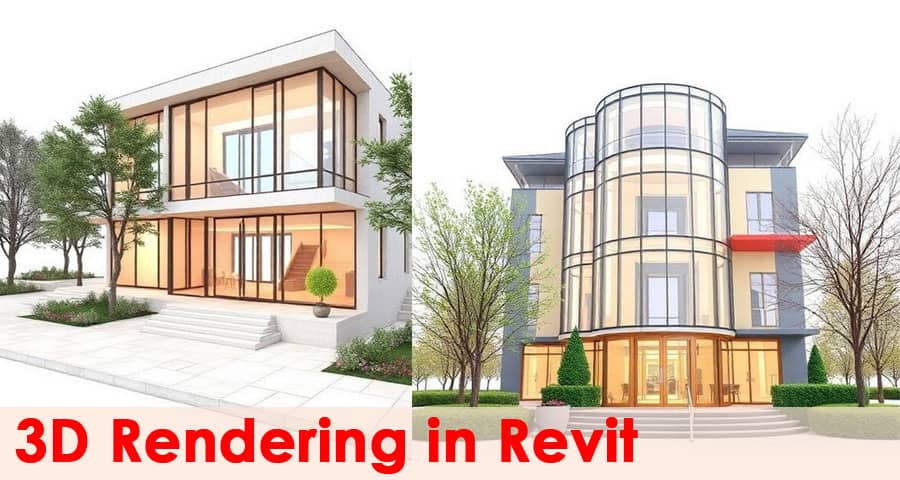
Modern architectural design demands more than simple 2D drawings. Today, clients, engineers, and architects require realistic visual representations of projects before construction begins. 3D Rendering in Revit has become one of the most powerful tools for creating accurate, detailed, and visually stunning building models.
Using Autodesk Revit, professionals can transform conceptual ideas into immersive 3D visualizations that clearly communicate design intent. From architectural planning to interior design and construction coordination, Revit rendering provides photorealistic images, lighting simulations, and material visualizations that help teams make better design decisions.
This comprehensive guide explores 3D rendering in Revit, including its features, workflow, tools, benefits, and techniques for achieving professional-quality architectural visualizations.
What is 3D Rendering in Revit?
3D rendering in Revit refers to the process of generating photorealistic images from a Building Information Modeling (BIM) model. It converts the digital architectural model into a lifelike visualization by applying lighting, materials, textures, shadows, and environmental effects.
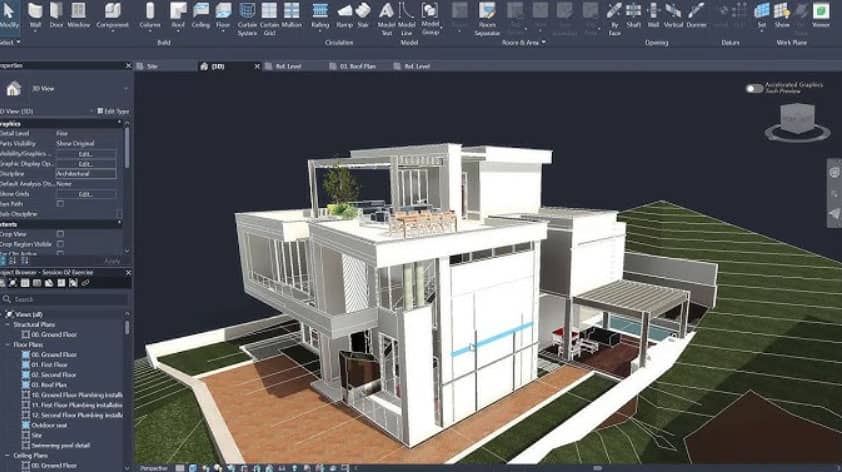
Unlike traditional CAD software, Revit integrates design modeling and rendering in a single platform, allowing architects and designers to visualize structures directly within the building model.
Key aspects of Revit rendering include:
- Realistic lighting simulation
- Accurate material representation
- Detailed shadows and reflections
- Environmental background settings
- Camera positioning and perspective views
These elements combine to produce high-quality architectural images that resemble real photographs of the finished building.
Why 3D Rendering in Revit is Essential for Modern Architecture
Architectural visualization plays a crucial role in communicating design ideas. Revit’s rendering capabilities provide clarity, precision, and visual appeal, making it indispensable in the design and construction industry.
Improved Design Visualization
With 3D rendered models, architects can present buildings in a highly realistic manner. Clients can see exact building shapes, materials, and lighting conditions, which reduces misunderstandings and improves approval rates.
Enhanced Client Communication
A photorealistic rendering makes it easier for non-technical stakeholders to understand architectural concepts. Instead of interpreting drawings, clients can view a complete visual representation of the final structure.
Better Design Decision Making
Rendering helps architects analyze lighting conditions, shadows, materials, and spatial relationships, enabling more informed design decisions before construction begins.
Efficient Project Presentations
Professionally rendered images help architects produce compelling presentations for investors, clients, and planning authorities.
Core Features of Revit Rendering
Revit offers powerful visualization tools that enable designers to create detailed architectural renderings directly from BIM models.
Integrated Rendering Engine
Revit includes a built-in rendering engine that allows users to produce high-resolution visualizations without exporting models to other software.
Physically Accurate Lighting
Revit supports natural sunlight simulation, artificial lighting fixtures, and realistic shadow calculations, allowing designers to study lighting conditions in real-world scenarios.
Material and Texture Libraries
The software includes extensive material libraries, enabling architects to apply realistic textures such as concrete, wood, glass, metal, and stone.
Camera and Perspective Views
Users can place cameras within the model to create perspective views that mimic real photography angles, improving the realism of the rendering.
Cloud Rendering Capability
Revit supports cloud-based rendering, which allows high-quality images to be generated without overloading local computer systems.
Step-by-Step Process of Creating 3D Rendering in Revit
Producing a professional rendering requires a structured workflow. The following process ensures high-quality results with efficient performance.
1. Create the 3D Model
The first step involves developing a complete building model in Revit, including architectural elements such as:
- Walls
- Floors
- Roofs
- Doors and windows
- Furniture and interior components
Accurate modeling is essential because rendering quality depends on the level of detail in the BIM model.
2. Apply Materials and Textures
Next, assign realistic materials to surfaces. For example:
- Concrete textures for structural walls
- Glass materials for windows
- Wood finishes for flooring or furniture
Proper material selection greatly enhances the visual realism of the rendering.
3. Set Up Lighting
Lighting plays a critical role in rendering quality. Revit allows designers to configure:
- Sunlight direction
- Time of day
- Artificial interior lighting
Correct lighting creates natural shadows and realistic illumination effects.
4. Position the Camera
The camera view determines the perspective and composition of the rendering. Designers can place cameras in strategic positions to highlight:
- Building facades
- Interior spaces
- Architectural features
A well-chosen camera angle dramatically improves the visual impact of the final image.
5. Adjust Rendering Settings
Before rendering, configure important parameters such as:
- Image resolution
- Lighting quality
- Exposure settings
- Background environment
Higher settings produce more realistic images but require longer processing times.
6. Render the Image
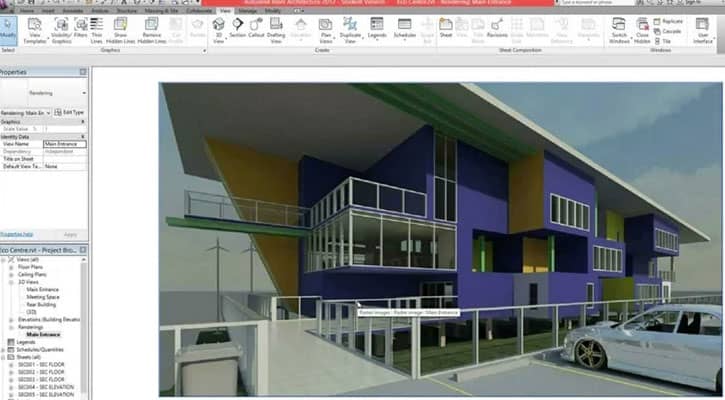
Once everything is configured, the rendering engine processes the scene and generates a photorealistic architectural image.
Types of 3D Rendering in Revit
Different rendering techniques are used depending on the design stage and presentation requirements.
Exterior Rendering
Exterior rendering focuses on the outside appearance of buildings, including:
- Facades
- Landscaping
- Surrounding environment
- Natural lighting
This type of rendering is commonly used for real estate marketing and project presentations.
Interior Rendering
Interior rendering visualizes indoor spaces such as living rooms, kitchens, offices, and commercial interiors.
It highlights:
- Furniture layouts
- Lighting design
- Wall finishes
- Decorative elements
Interior renderings help clients understand how the final space will look and feel.
Conceptual Rendering
Conceptual rendering provides quick visual representations during the early design stage. These images may be less detailed but allow architects to test design ideas quickly.
Photorealistic Rendering
Photorealistic rendering produces extremely realistic images that resemble professional photographs. These are commonly used in architectural marketing and project approvals.
Best Practices for High-Quality Revit Renderings
Achieving professional results requires attention to several critical factors.
Use High-Quality Materials
Low-resolution textures can reduce realism. Always use high-quality material maps and textures.
Optimize Lighting Conditions
Balanced lighting improves image quality. Combine natural daylight with interior artificial lighting for realistic results.
Add Surrounding Context
Including trees, roads, sky backgrounds, and landscape elements enhances the overall presentation.
Control Exposure and White Balance
Adjusting exposure settings ensures the rendering appears neither too dark nor overexposed.
Use Appropriate Rendering Quality
For final presentations, select high-quality rendering settings to achieve maximum realism.
Advantages of Using Revit for 3D Rendering
Revit offers several advantages compared to traditional visualization workflows.
BIM Integration
Rendering directly from a BIM model ensures the visualization always reflects the latest design updates.
Accurate Construction Representation
Because the rendering is generated from the actual building model, it accurately represents dimensions, materials, and construction elements.
Time Efficiency
Integrated tools eliminate the need for exporting models to multiple visualization software platforms.
Improved Collaboration
Design teams can easily share rendered images and visualizations with clients and stakeholders.
Common Challenges in Revit Rendering
Although powerful, Revit rendering can present certain challenges.
High Hardware Requirements
Rendering complex scenes requires powerful processors and large memory capacity.
Long Processing Times
High-resolution images may take significant time to generate, especially for large models.
Learning Curve
Mastering lighting, materials, and camera setup requires practice and technical understanding.
Despite these challenges, the benefits of Revit 3D visualization far outweigh the limitations.
Future of Architectural Rendering with Revit
The future of 3D rendering in Revit is closely connected with advancements in real-time visualization, cloud rendering, and artificial intelligence.
New technologies are enabling:
- Real-time rendering engines
- Virtual reality walkthroughs
- Augmented reality presentations
- AI-assisted material and lighting optimization
These innovations will continue to improve the speed, realism, and accessibility of architectural visualization.
Conclusion
3D rendering in Revit has transformed architectural visualization, allowing professionals to produce highly realistic representations of buildings before construction begins. By integrating BIM modeling, lighting simulation, materials, and advanced visualization tools, Revit enables architects and designers to communicate ideas with unmatched clarity.
From conceptual design to final presentations, Revit rendering provides an efficient and powerful way to visualize architectural projects. With proper techniques, optimized materials, and carefully configured lighting, designers can generate stunning photorealistic images that bring architectural concepts to life.
As the construction industry increasingly relies on digital design and BIM technologies, mastering Revit 3D rendering has become an essential skill for architects, engineers, and visualization professionals seeking to deliver impactful, precise, and visually compelling project presentations.
